Compress your images, with fine control over quality and size
Start editing →


 Frame 1
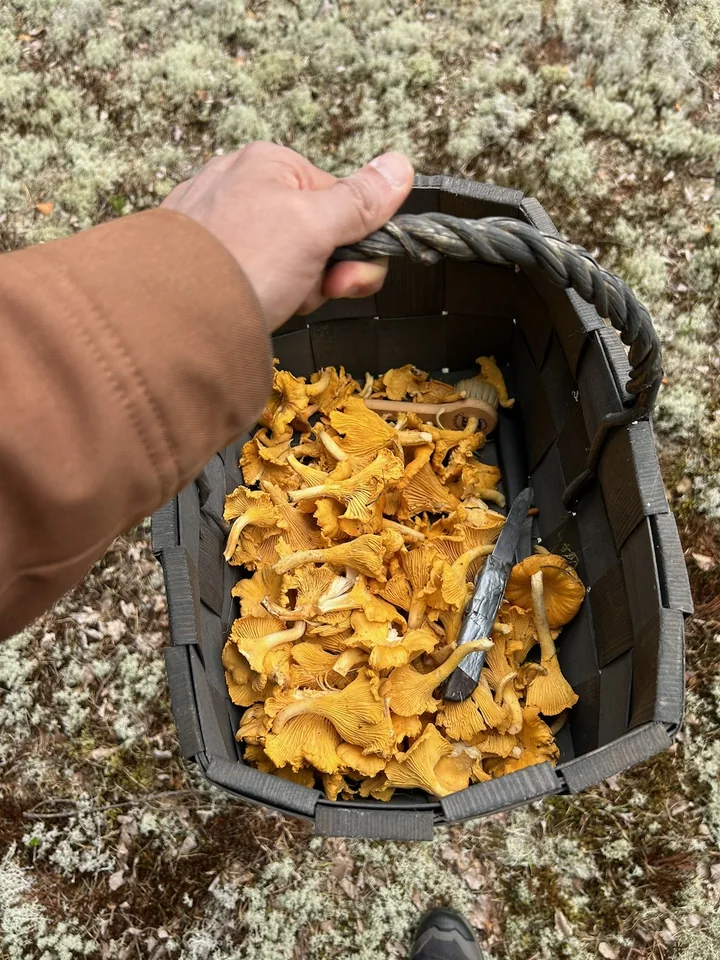
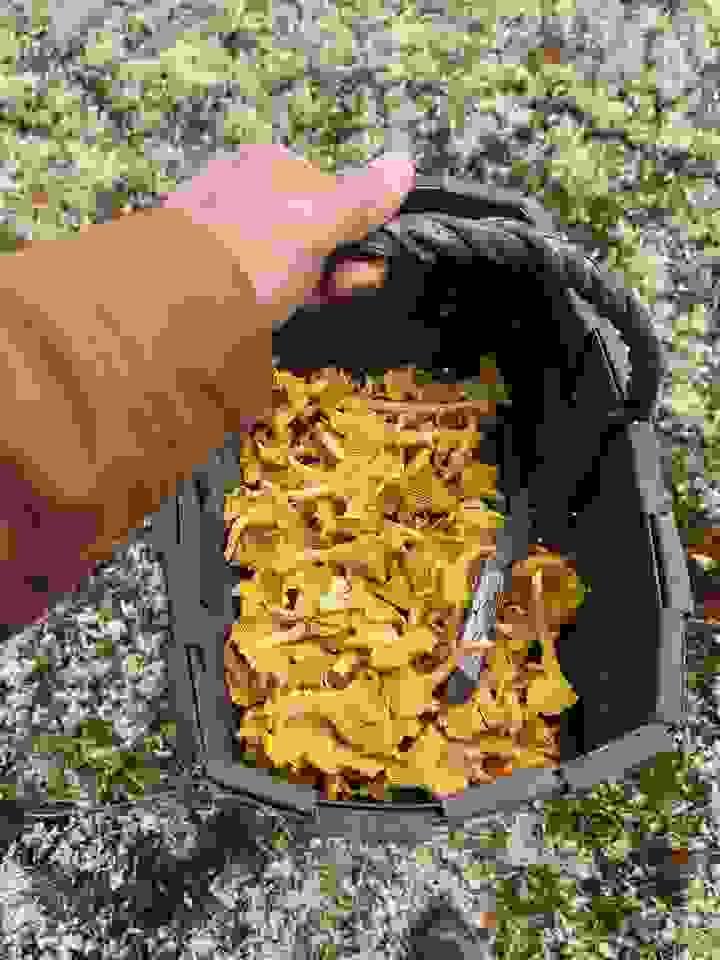
 Chanterelles
Simply paste the image you want to compress to the editor, adjust the size and quality to your liking, and export your file via the top left menu -> Export -> Compressed. But Papaya isn't just an image compressor, it's a full image editor, so you can also edit your image, add text, work with layers, and compress your complex file into a size that your project demands. Papaya offers one browser window for all your editing steps, right up to exporting a file with the size and format that you need.
Convert between different file formats
Papaya allows you to seamlessly switch between file formats. Change your JPEGs into PNGs in no time, or reuse the same design on different occasions by downloading it in different file formats. Papaya’s image editor currently supports exports in JPEG, PNG, WebP and PDF formats.
How to choose the correct size for your file?
Adding an image to a website? Aim for 70 KB – 250 KB. Small image sizes will make your website nice and snappy. Use Papaya's compression controls to find the perfect tradeoff between size and quality.
If you are building a CV, optimize for most Applicant Tracking Systems at 500 KB or at max 1,5 MB
Getting postcard- sized flyers printed? 3 MB should be good.
Planning A3 sized posters? For great printing quality, you should keep the file size big between 10 MB – 30 MB.
Some technical details for those who are interested in more than kilobytes
Papaya uses industry-standard compression libraries to ensure state of the art compression ratios and perfect compatibility.
| Export format | Libraries | Compression | Transparency |
|---|---|---|---|
| JPEG | MozJPEG | Lossy | No |
| PNG | libpng, zlib | Lossless | Yes |
| WebP | libwebp | Lossy or lossless; you choose | Yes |
Privacy conscious?
Papaya compresses your files locally in your browser, meaning that you do not have to worry about your files being saved in a server without your knowledge.
Image files can contain more data than the pixels themselves. This is called metadata, and can include things like where and when the photo was taken, camera and lens details, or other device identifiers. Papaya removes this source metadata when it exports an image. Only the pixel data, dimensions, and selected compression settings reach the export encoder.
This provides useful privacy by default. For example, a photograph taken on a phone can contain the location where it was captured even when that location is not visible in the picture. An exported copy from Papaya does not carry that GPS record. It also does not carry the source camera details, original timestamp, or editing history. This reduces the chance of sharing information that you did not intend to publish.